Category: How To Guides

  • Smart Plug Scheduling Made Easy: Automate Your Home in Minutes

    Smart Plug Scheduling Made Easy: Automate Your Home in Minutes

    Your electricity bill just jumped 15% this summer, and you’re probably wondering where all that extra money went. Here’s a shocking fact: regular electricity can cost you more if you are not aware of Smart Plug scheduling.

    The smart plug market is expanding. Millions of Americans are finding out that smart plug scheduling can cut their energy costs by 20-30% without really changing their lifestyle.

    Smart homes use way less energy than regular homes, and it all starts with one simple device that costs less than a pizza. This is the time to become advanced with better savings. Smart home automation is the easiest way to get into this stuff, and here’s exactly how you can do it.

    What is Smart Plug Scheduling, and Why Do You Need It?

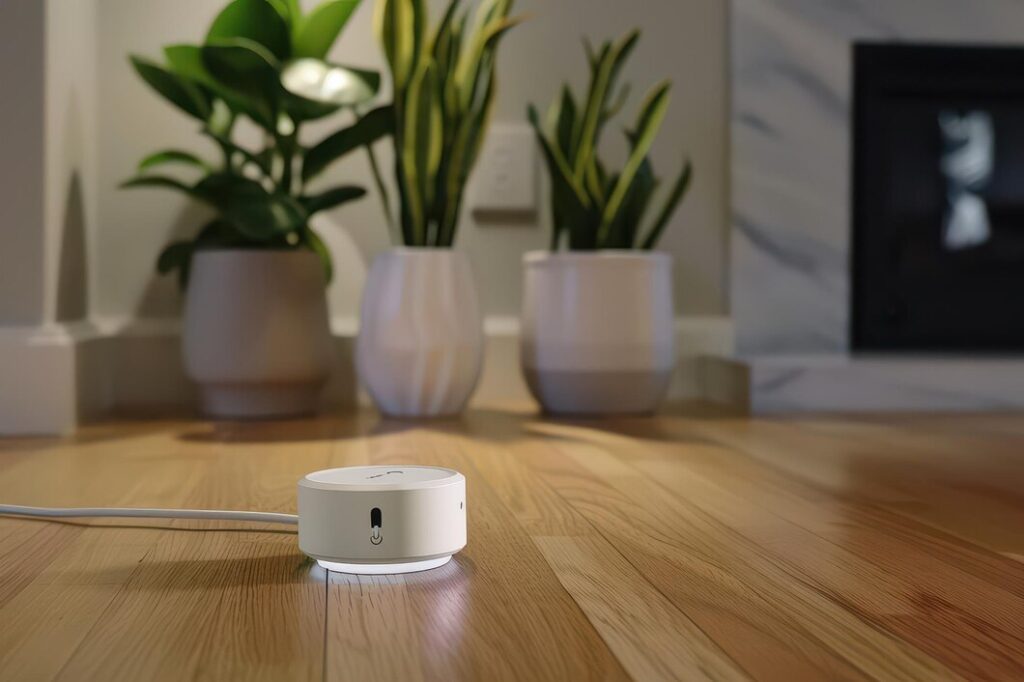
    Smart plug scheduling just means you can control when your devices turn on and off automatically. No more forgetting to turn off that space heater or wondering if you left the coffee maker on all day. A Wi-Fi smart plug connects to your home internet and follows schedules you set up in an app on your phone.

    The best part? A smart plug only uses 1-2 watts of power itself, so it pays for itself super fast. Think of it as giving your dumb appliances a brain that remembers to turn them off when you forget.

    Smart home automation doesn’t have to be complicated or expensive. You can start with just one plug and build from there. The tech works by connecting to your Wi-Fi and taking commands from your phone, even when you’re not home.

    The Hidden Energy Vampires Draining Your Wallet

    Here’s what’s really eating up your electricity bill. The average American home has around 40 devices plugged in all the time. A lot of this power is wasted even when you’re not using them. This “phantom power” costs you real money:

    • Gaming consoles: $150-200 per year just sitting there in standby mode.
    • Cable boxes: $100 a year if you leave them on 24/7.
    • Desktop computers: $175 per year if they never get turned off.
    • Old TVs and entertainment systems: $80-120 per year.
    • Phone chargers and small appliances: $50-100 per year combined.

    That adds up to $400-600 in wasted electricity every year for most families. A $15 smart plug can eliminate most of this waste automatically.

    How to Set Up Your First Smart Plug in 10 Minutes?
    Smart Plug Scheduling Made Easy: Automate Your Home in Minutes

    Getting started with smart plug automation is easier than setting up a new phone. Here’s the step-by-step process:

    • Step 1: Pick Your First Device
      Start simple. A coffee maker, a lamp, or your phone charging station are great first choices. Don’t try to hook up your big heaters or complex electronics until you get the hang of it.
    • Step 2: Choose Your Smart Plug Type
      This depends on what you already use at home.
      • A Google Smart Plug works best if you already use Google Home.
      • There are many smart plugs for Alexa if you have Amazon Echo devices.
      • Universal plugs work with multiple systems if you’re not sure.
    • Step 3: Download the App
      Most smart plug timer app setups take about 5 minutes. The app will walk you through connecting the plug to your home Wi-Fi. You’ll need your Wi-Fi password ready.
    • Step 4: Create Your First Schedule
      This is where you set up the smart plug. Instead of you remembering to turn things off, you just set rules for the plug to follow. For example:
      • “Turn off TV and all gaming stuff every night at midnight.”
      • “Start the coffee maker Monday-Friday at 6:30 AM.”
      • “Turn on living room lamps when the sun sets.”

    Advanced Features: Voice Control and Remote Access

    A voice control smart plug setup makes your new smart home system even easier to use. Once you connect it to Alexa or Google Home, you can just say things like

    • “Alexa, turn off the living room lamp.”
    • “Hey Google, turn on the coffee maker.”
    • “Alexa, turn off all the bedroom plugs.”

    Remote plug control means you can manage your home from literally anywhere with your phone. Did you forget to turn off a fan after leaving for work? No problem. Open the app and turn it off. Are you going to be late getting home? Turn on some lights from your car so you don’t walk into a dark house.

    Common Mistakes That Cost You Money

    A lot of people get excited and make a few simple mistakes that can be frustrating. Learning from them now will save you time and make sure your smart home automation actually works for you. Avoid these common slip-ups.

    • Don’t Over-Automate Right Away. The biggest mistake people make is buying a dozen plugs and trying to make everything smart at once. Start with one or two devices you always forget to turn off. Add more plugs slowly as you get used to it.
    • Check Device Compatibility. Some things just don’t work well with a Wi-Fi smart plug. Anything with a mechanical on/off switch or complex safety features might not turn back on right after the plug gives it power.
    • Update Your Schedules. Your routine changes. Your work schedule changes, and seasons change. Look at your plug schedules every few months to make sure they still make sense for you.
    • Don’t Forget Manual Control. Make sure you can still turn your stuff on and off by hand if you need to. The best systems help you; they don’t trap you.

    Popular Smart Plug Options

    There are a ton of brands out there, but you don’t need to get lost in reviews. Most people just need a reliable plug that works with the system they already have, like Alexa or Google. Here are the most popular choices that just work.

    • Amazon Smart Plug: Works perfectly with Alexa devices and usually costs around $25. The setup is done right inside the Alexa app and takes minutes. This is one of the most popular smart plugs for Alexa.
    • TP-Link Kasa Plugs: These are great because they work with Alexa, Google Home, and their own app. They often have energy monitoring features and cost between $10 and $20 each.
    • Google Nest Plugs: If you’re building a Google-based home, a Google smart plug is the best fit. They integrate perfectly but are a bit more expensive, around $20-30.

    For the smart plug timer app setup, most of these brands are pretty similar. The key is to try and stick with one system (like all Google or all Alexa) so all your devices can talk to each other easily.

    Building Your Complete Smart Home System
    Smart Plug Scheduling Made Easy: Automate Your Home in Minutes

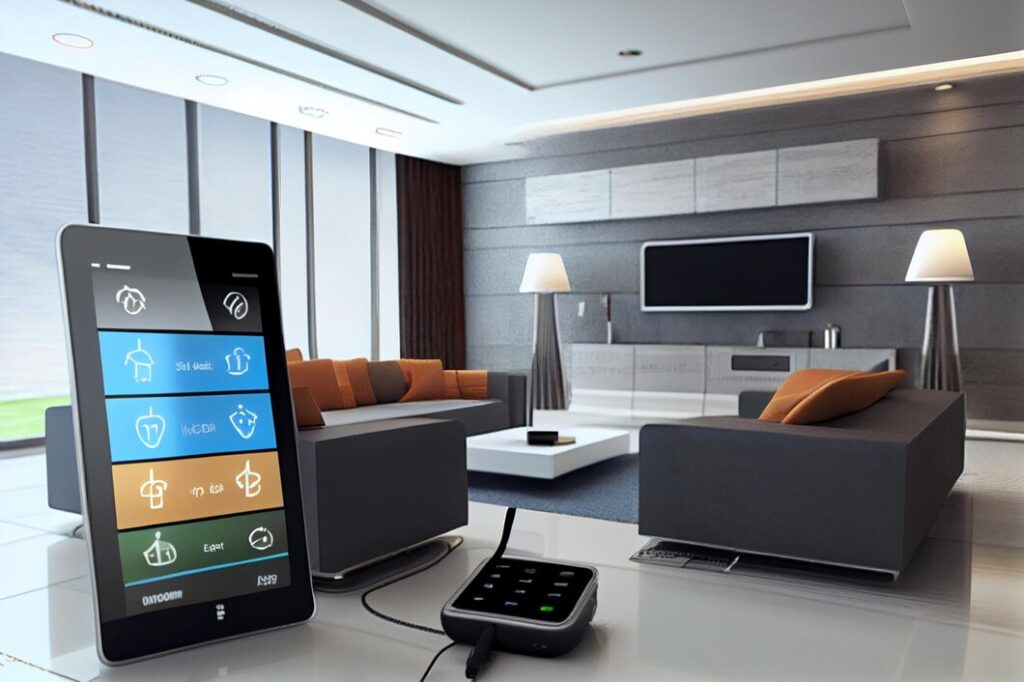
    Smart plug automation is just the beginning. Once you see how easy it is and how much you save, you can expand your smart home system to include:

    • Smart thermostats can save 10-15% on heating and cooling
    • Smart light switches
    • Smart water heater controllers
    • Smart sprinklers for your lawn

    Each new device just adds to the savings and makes your home smarter and your life a little easier.

    The Bottom Line: Start Today, Save Tomorrow

    Over 83 million homes in North America had smart devices by 2028, and the smart plug is the most popular way to start. The technology isn’t complicated, the setup is not hard, and the savings start right away.

    The time to start is now. Every day you wait is another day that “phantom power” is draining money from your wallet. The initial cost is small, and the benefits just keep adding up over time.
  • How to Navigate Smart Technology: Clear Step-by-Step Guides

    How to Navigate Smart Technology: Clear Step-by-Step Guides

    Have you bought any new smart technology and found yourself in trouble, surrounded by instruction manuals, and seriously considering returning the device? According to recent research, consumers spend close to 1.5 hours of their own time resolving smart device issues and one hour working with customer service.

    Even after so much talk about tech and smart technology, even now, an average American spends around 1-2 hours per week dealing with smart home maintenance or support issues. The smart home market is booming, with revenue expected to hit $174 billion by 2025, but many people still find themselves lost when it comes to actually using these devices.

    Smart technology doesn’t have to be complicated. With 69.91 million US households now using smart home devices, a 10.2% jump from last year, it’s clear that once people figure it out, they love the convenience. The key is knowing the right steps to take and avoiding common mistakes that trip up most beginners.

    Understanding Smart Technology Basics

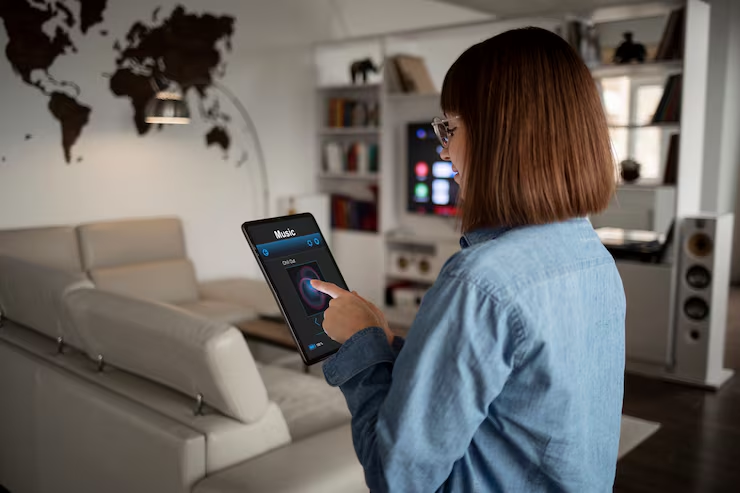
    Smart technology means devices that connect to the internet and can talk to each other or be controlled remotely. These IoT (Internet of Things) devices include everything from thermostats and light bulbs to security cameras and door locks.

    The biggest difference between regular devices and smart devices is connectivity. A regular light switch just turns lights on and off. A smart home device can do that, plus let you control it from your phone, set schedules, and even respond to voice commands.

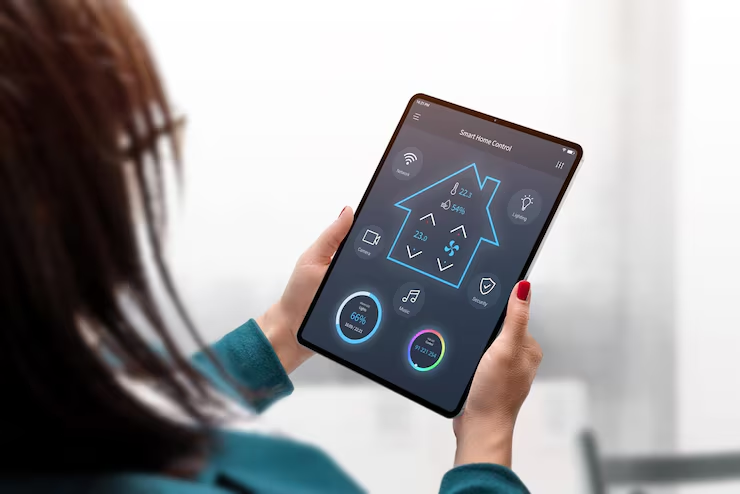
    Most home automation systems work through three main parts: your home’s WiFi network, the devices themselves, and an app or voice assistant to control everything. Understanding this basic setup helps prevent the confusion that causes 38% of people to return their first smart device within 30 days.

    Pre-Setup Planning for Smart Homes

    Before buying any smart home devices, check your internet speed. Most devices need at least 10 Mbps upload speed to work properly. You can test this for free using speed test websites. If your internet is slow, adding multiple devices will make everything run poorly.

    Next, decide which room to start with. The living room is usually best because it has good WiFi coverage and you spend lots of time there. Starting small with 2-3 devices helps you learn without getting overwhelmed.

    Smart home devices that work together are much better than random devices from different brands. Popular ecosystems include:

    • Amazon Alexa: Works with over 100,000 devices
    • Google Home: Good integration with Android phones
    • Apple HomeKit: Best if you use iPhones and iPads
    • SmartThings: Works with almost everything

    Choose one ecosystem and stick with it. This makes setting up a smart home much easier because everything uses the same app.

    Step-by-Step Device Setup Process

    How to Navigate Smart Technology: Clear Step-by-Step Guides

    Getting Your Network Ready

    Strong WiFi is crucial for home automation. Most routers that come from internet companies are okay for basic use, but smart home devices need a consistent connection. If your WiFi is weak in some rooms, consider getting a mesh network system.

    Create a separate network for your IoT devices if possible. Many newer routers have a “guest network” feature; use this for smart devices. This keeps your main devices (like computers and phones) separate and more secure.

    Installing Your First Smart Device

    Start with something simple, like a smart plug or smart bulb. These are cheap (usually under $15) and hard to mess up. Here’s the basic process that works for most devices:

    1. Download the app first.
    2. Create your account in the app
    3. Plug in or install the device
    4. Put the device in pairing mode (usually by holding a button for 3-5 seconds).
    5. Follow the app instructions to connect to WiFi.
    6. Test the basic functions before moving on

    This process takes 10-15 minutes for most devices. If it’s taking longer, something’s wrong; check your WiFi password or restart your router.

    Connecting Multiple Devices

    Once your first device works, adding more becomes easier. The app will remember your WiFi settings, so new devices connect faster. However, don’t add everything at once. Add 1-2 devices per week so you can learn how each one works.

    Group similar devices together in your app. Put all bedroom lights in a “Bedroom” group, all kitchen devices in a “Kitchen” group, etc. This makes controlling multiple devices much simpler.

    Common Setup Problems and Solutions

    The common setup problem for any smart technology is with its connectivity. The WiFi connection issues cause about 60% of setup problems. If a device won’t connect:

    • Move closer to your router during setup.
    • Make sure you’re using the 2.4 GHz network (not 5 GHz).
    • Double-check your WiFi password.
    • Restart your router if needed.

    App crashes happen when phones don’t have enough storage or the app is outdated. Delete old photos or apps you don’t use, then update the smart device app.

    Device not responding usually means the device lost its WiFi connection. Unplug it for 10 seconds, then plug it back in. Most devices will reconnect automatically.

    Some devices just don’t work well together, even if they claim to be compatible. Research shows that devices from the same brand work together 85% better than mixing different brands.

    Smart Home Automation Setup

    How to Navigate Smart Technology: Clear Step-by-Step Guides

    How to automate your home starts with simple routines. Instead of manually controlling each device, create automatic actions based on time or triggers.

    Popular automation ideas include:

    • Turn on porch lights at sunset
    • Lower thermostat at bedtime
    • Start coffee maker at 7 AM
    • Lock doors at 11 PM

    Most smart home guide resources suggest starting with time-based automations since they’re easier to set up. Motion sensors and other trigger-based automations can come later once you’re comfortable with the basics.

    The key to good automation is keeping it simple. Complex rules with multiple conditions often break or behave unexpectedly. Stick to straightforward “if this, then that” logic.

    Advanced Navigation Tips

    Once you’ve got the basics down, smart tech tutorials from 2025 show several advanced features worth exploring. Voice control becomes much more useful when you can control multiple devices with one command.

    Set up scenes or modes that control several devices at once. A “Movie Mode” might dim the lights, close smart blinds, and turn on the TV, all with one voice command or app tap.

    Regular maintenance keeps everything running smoothly. Update device firmware monthly, check battery levels in wireless devices, and clean sensors (like motion detectors) every few months.

    Smart home devices collect data about your usage patterns. Review these insights monthly to spot opportunities for better automation or energy savings.

    Security and Privacy Considerations

    IoT devices can be security risks if not set up properly. Change default passwords immediately; many devices come with passwords like “admin” or “123456” that hackers know.

    Enable two-factor authentication on your smart home apps. This adds an extra security step but prevents hackers from accessing your devices even if they get your password.

    Review what data your devices collect. Some smart home devices record conversations, track when you’re home, or monitor energy usage. Decide if you’re comfortable with this data collection and adjust privacy settings accordingly.

    Conclusion

    Smart technology transforms how we interact with our homes, but success depends on taking the right approach. Start small, choose compatible devices, and focus on solving real problems rather than buying gadgets just because they’re cool.

    The smart home market will keep growing, with new devices and features launching constantly. But the fundamentals covered in this smart home guide, strong WiFi, compatible ecosystems, and simple automation, remain the foundation of any successful setup.

    Remember that setting up a smart home is a process, not a one-time project. Build your system gradually, learn how each device works, and don’t be afraid to return products that don’t meet your needs. With patience and the right approach, home automation can genuinely make your daily life easier and more convenient.

  • How to Secure Your Wi-Fi Network: A Step-by-Step Guide

    How to Secure Your Wi-Fi Network: A Step-by-Step Guide

    Cybercriminals are getting smarter every day, and they’re targeting home networks more than ever before. According to Broadband Genie’s 2024 survey involving 3,045 respondents, 52% of users have never adjusted any router factory settings, leaving their networks wide open to attacks. With the global average cost of a data breach reaching $4.88 million in 2024, learning how to secure a Wi-Fi network properly isn’t just smart; it is absolutely necessary.

    Your Wi-Fi security is the first line of defense against hackers who want to steal your personal information, spy on your online activities, and use your internet connection for illegal stuff. This guide will show you exactly how to protect your wireless network security using simple, proven methods that actually work.

    Understanding Wi-Fi Security Threats

    Your home Wi-Fi protection faces serious threats every single day. Hackers don’t take breaks, and they’re constantly looking for easy targets. The most common way they get into your network is through weak Wi-Fi passwords and outdated security settings that most people never bother to change.

    Research shows that approximately 3.1% of all access points still use the old WEP security protocol, which hackers can crack in just minutes. That’s like using a paper lock on your front door; it looks like security, but it doesn’t actually protect anything.

    • Evil twin attacks are becoming super common, too. Hackers create fake Wi-Fi networks that look exactly like real ones. When you connect to what you think is your neighbor’s network or a coffee shop’s Wi-Fi, you might actually be connecting to a hacker’s trap. They can then see everything you do online, every password, every credit card number and every private message.
    • Man-in-the-middle attacks happen when cybercriminals position themselves between your device and the internet. It’s like having someone secretly read all your mail before it gets delivered. The scary part is you probably won’t even know it’s happening until it’s too late.

    Common Wi-Fi Vulnerabilities You Need to Fix

    How to Secure Your Wi-Fi Network: A Step-by-Step Guide

    Most home networks have huge security holes that homeowners don’t even realize exist. These vulnerabilities make it super easy for attackers to break in and cause serious damage to your digital life.

    • Default router passwords are the biggest problem. When you buy a new router, it comes with a standard username and password that’s usually something obvious like “admin/admin” or “admin/password.” Hackers know all these combinations by heart and can get into your router in seconds if you haven’t changed them.
    • Outdated firmware creates another massive security gap. Router companies regularly release updates to fix newly discovered security problems. According to Kaspersky’s analysis, over 500 vulnerabilities were discovered in routers in 2021, including 87 critical ones. When you ignore these updates, you’re basically leaving known security holes wide open for hackers to exploit.
    • Your smart home devices can also be the weakest link in your network. That smart doorbell or voice assistant might seem harmless, but according to Verizon’s 2024 Data Breach Investigations Report, one in three breaches now involves an IoT device. These devices often have terrible security and almost never get security updates.
    • Guest network problems are another common issue. Many people either don’t set up a guest network at all, or they create one with no password. This gives visitors and potential attackers the same access to your network as your own devices have.

    Step-by-Step Wi-Fi Security Configuration

    How to Secure Your Wi-Fi Network: A Step-by-Step Guide

    Securing your Wi-Fi network doesn’t require you to be a tech expert. Follow these practical steps to turn your vulnerable network into a fortress that keeps cybercriminals away from your personal information.

    How to Change Wi-Fi Password and Router Settings

    Your first job is getting rid of those dangerous default login credentials. Access your router’s settings by typing its IP address into your web browser, usually 192.168.1.1 or 192.168.0.1. You’ll find the exact address on a sticker on your router.

    Change the Wi-Fi password by creating a strong admin password that includes uppercase letters, lowercase letters, numbers, and special characters. Make it at least 12 characters long. Don’t use obvious stuff like your name, address, or “password123.” Think of it like picking a lock for your house; you wouldn’t choose one that anyone could break easily.

    Change the default username, too. Most people forget this step, but it’s really important. If hackers know your username is “admin,” they’re already halfway to breaking into your system. Pick something unique that has nothing to do with your personal info.

    Setting Up the Best Wi-Fi Security Types

    Wi-Fi security types are your network’s protection against hackers trying to spy on your internet traffic. Go to your router’s wireless security settings and look for encryption options. If your router supports WPA3, choose it right away. This is the newest and strongest protection available for home networks.

    If WPA3 isn’t available on your router, select WPA2 with AES encryption. Never use WEP or leave your network completely unprotected. Recent security research shows that vulnerabilities like the SSID confusion attack affect all types of Wi-Fi networks, but WPA3 still gives you the best protection you can get.

    Create a strong Wi-Fi password for your network that’s different from your admin password. This is what devices need to connect to your Wi-Fi. Make it long, at least 15 characters, and mix in letters, numbers, and symbols. Use a phrase you can remember with numbers and symbols added, like “Pizza$Tastes4Great!” instead of random letters that you’ll forget.

    Updating Router Firmware for Better Protection

    Router firmware updates are like security patches for your network’s foundation. Most newer routers can check for updates automatically, but you should make sure this setting is turned on. Look for “Automatic Updates” or “Firmware Update” in your router’s settings.

    If automatic updates aren’t available, check for updates manually at least once a month. Go to your router manufacturer’s website and search for your specific model. Download the latest firmware and follow the instructions carefully. Never interrupt this process; a failed firmware update can permanently break your router.

    Set a monthly reminder on your phone to check for updates. With more than 30,000 vulnerabilities disclosed last year, staying current with security patches is more important than ever.

    Setting Up Guest Networks

    A guest network creates a separate Wi-Fi connection for visitors, keeping them away from your main devices and personal data. It’s like having a separate entrance for guests instead of letting them walk through your bedroom to get to the living room.

    Set up your guest network with its own unique name and password. Turn on security features like client isolation, which stops devices on the guest network from talking to each other. This prevents a hacked guest device from attacking other visitors’ devices.

    Set bandwidth limits for your guest network so visitors can’t use up all your internet speed. You can also set time restrictions; some routers let you automatically turn off guest access during certain hours.

    Also Check: How to Navigate Smart Technology: Clear Step-by-Step Guides

    Advanced Wi-Fi Security Tips

    How to Secure Your Wi-Fi Network: A Step-by-Step Guide

    Beyond basic setup, several advanced techniques can dramatically improve your Wi-Fi protection. These methods need a bit more technical knowledge but provide serious protection against sophisticated attacks.

    MAC Address Filtering and Router Features

    MAC address filtering creates a whitelist of devices that can connect to your network. Every device has a unique MAC address, like a digital fingerprint. When you enable this feature, only approved devices can join your network, even if someone knows your password.

    Find the MAC addresses of your devices in their network settings. On Windows computers, open Command Prompt and type “ipconfig/all.” On phones, check the Wi-Fi settings or About section. Add these addresses to your router’s MAC filtering list.

    Remember that MAC filtering isn’t perfect; advanced hackers can fake MAC addresses. But it adds another layer of protection and stops casual intruders pretty effectively.

    Choosing the Most Secure Wi-Fi Router

    When shopping for the most secure Wi-Fi router, look for these important features: WPA3 support, automatic security updates, strong processor power, and regular firmware updates from the manufacturer. Brands like ASUS, Netgear, and Linksys generally offer good security features in their higher-end models.

    Avoid cheap routers that don’t get regular updates. Check online reviews and security ratings before buying. A router that costs a bit more upfront can save you thousands of dollars in potential security breach costs later.

    Look for routers with built-in VPN support, advanced firewalls, and intrusion detection systems. These features provide extra layers of protection against sophisticated attacks.

    Disabling Risky Features

    Wi-Fi Protected Setup (WPS) might seem convenient, but it’s a huge security risk. This feature lets devices connect to your network by pressing a button or entering a PIN, but it also creates vulnerabilities that hackers love to exploit. Turn off WPS completely in your router settings.

    Remote management features let you access your router from outside your home network. Unless you specifically need this, turn it off. These features create extra ways for cybercriminals to break into your network.

    Review all the services running on your router and disable anything you don’t need. Turn off features like UPnP (Universal Plug and Play) unless you need them for specific programs. Each enabled service is another potential entry point for attackers.

    Conclusion

    Your Wi-Fi security protects way more than just your internet connection; it safeguards your entire digital life. From family photos to banking information, everything flows through your home network. The numbers don’t lie: 1,732 data breaches happened in the first half of 2025, an 11% increase from last year, and many of these breaches start with compromised home networks.

    The Wi-Fi security tips in this guide aren’t just suggestions; they’re must-do tasks in today’s cyber threat environment. Changing default passwords, enabling WPA3 encryption, updating firmware, and monitoring your network regularly aren’t just good ideas; they’re your main defense against increasingly smart attacks.

    Don’t wait for something bad to happen before you take action. Use these Wi-Fi security tips today to protect your network, and you’ll sleep better knowing your digital life is safe from cybercriminals who are constantly looking for their next victim.